Cut the cable.
Or plug right in.
Connect over your local Wi-Fi network, or use Android USB when a wired setup fits your desk.
Great video starts with the camera you already own. Turn your phone into a webcam and bring your next stream, meeting, or creative idea to life.
From your first connection to your next live session, CamPort keeps your camera close and your workflow simple.
Connect over your local Wi-Fi network, or use Android USB when a wired setup fits your desk.
Switch between front and rear cameras, adjust zoom, and keep an eye on your live preview.
Add your phone to a scene with the CamPort OBS plugin. A familiar workflow, with a new perspective.
EXPLORE THE OBS PLUGINBring your sources, sound, and camera controls together.
Everything in view. Everything within reach.
Combine phones, images, text, and video. Crop, rotate, and arrange your sources.
Record your composition with audio or capture a still with a snapshot.
Start the virtual camera, then select OBS Virtual Camera in your meeting app.
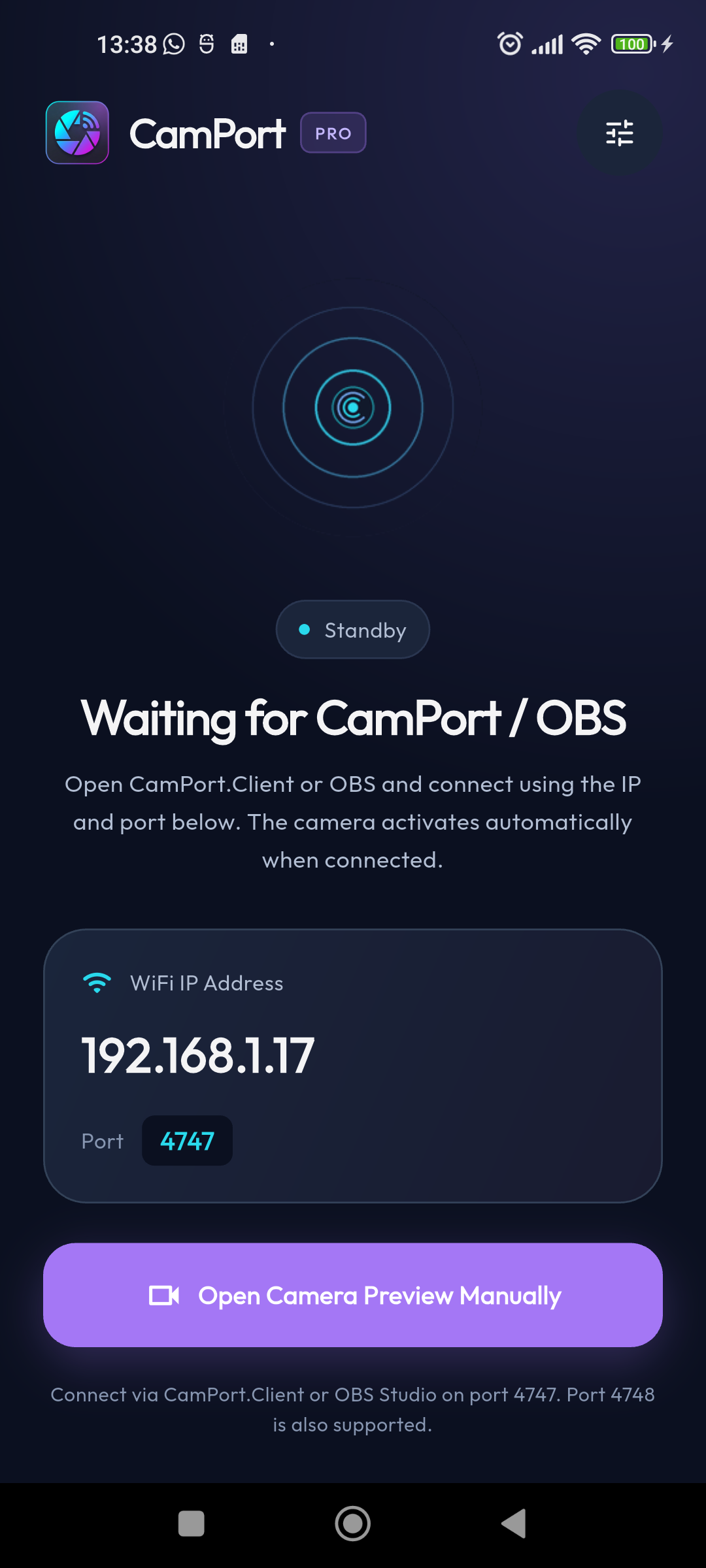
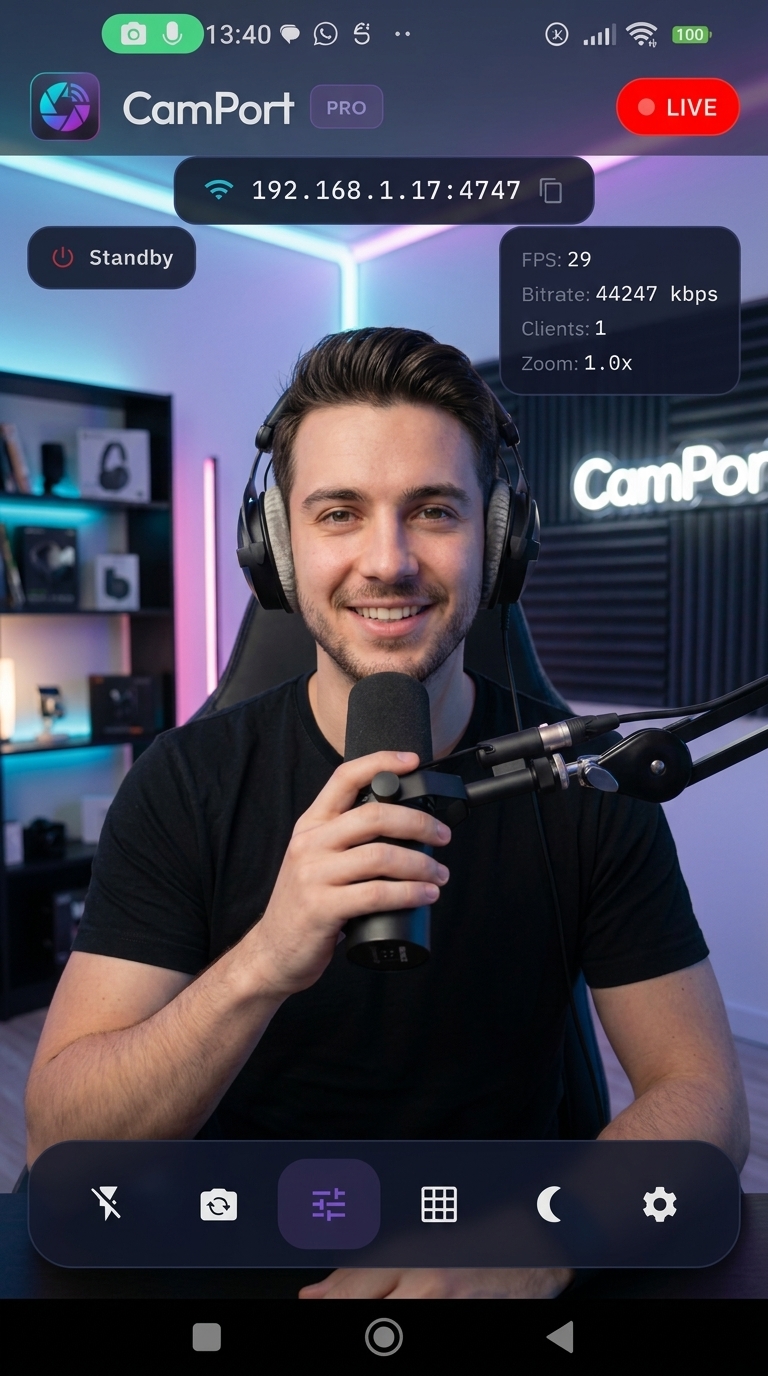
A clear connection screen. A live view of your shot. Your camera controls, right where you need them.
01 — Connected to your next idea.
Allow camera access. The standby screen shows the IP address and port you'll use to connect.
Open CamPort Studio or the OBS plugin. Use the same Wi-Fi network and enter your phone's connection details.
Your camera activates when connected. Frame your shot, start recording, or turn on the virtual camera.
Connect your Android phone with a USB data cable, enable USB debugging, and approve the computer on your phone. In CamPort Studio, use device discovery to find your USB device, then connect. Keep CamPort open on the phone.
Pair the CamPort mobile app with the desktop experience that fits you.
Your phone becomes the camera. Live preview, camera switching, and connection details in one place.
Download link coming soonCompose your scene, mix audio, record video, and send your picture to the OBS virtual camera.
Windows download coming soonWindows x64 · Requires OBS StudioAlready using OBS? Add your phone directly as a camera source and keep creating in your usual workspace.
Plugin download coming soonGet to know your new camera setup.
An Android phone with CamPort and a Windows computer with CamPort Studio, or OBS with the CamPort plugin. For Wi-Fi, connect both devices to the same local network.
Yes. In CamPort Studio, start the virtual camera and choose “OBS Virtual Camera” in your video meeting app. OBS Studio must be installed. The virtual camera carries video; select your meeting microphone separately.
CamPort Studio supports Android microphone audio over Wi-Fi and USB. Enable the phone microphone in source properties and grant microphone permission on the phone. Phone audio can be mixed into recordings.
CamPort Studio offers source and canvas settings from 480p to 4K and output settings up to 60 FPS. The actual camera resolution and frame rate depend on your phone, the mobile app, and your connection.
Keep CamPort open and check that both devices are on the same network. Enter the IP address and port shown on your phone, and allow the desktop app through your firewall on your private network. For USB, check the debugging permission and use a data-capable cable.
FROM PHONE TO STUDIO.